📑 Table of Contents
- What Are Quantity Rules?
- Why Every Store Needs Quantity Rules
- The 3 Types of Quantity Rules
- Where to Set WooCommerce Quantity Rules
- How Rules Work Together (Priority System)
- Real-Time Validation
- Quick Setup: 5 Minutes to Profit Protection
- Real-World Scenarios
- Frequently Asked Questions
- The Bottom Line
Imagine this…
A customer buys one of your $5 widgets.
You pay $4 for shipping, $2 for packaging, and $1 in credit card fees.
You just lost money on that order.
It happens every day. And if you’re running a WooCommerce store, you’ve probably felt that sting – the tiny orders that eat your margins, the bulk orders that clear out your inventory, the odd quantities that break your packaging process.
There’s a simple fix: WooCommerce minimum quantity rules.
In this guide, I’ll walk you through exactly how to set minimum, maximum, and step quantities in WooCommerce – and why doing so can boost your profits overnight. No coding. No stress. Just smart rules that protect your bottom line.
What Are WooCommerce Quantity Rules?
WooCommerce quantity rules are limits you place on how many of a product a customer can buy.
- Minimum quantity – the smallest number they must order.
- Maximum quantity – the largest number they can order.
- Step quantity – the increment they must order in (e.g., multiples of 2, 4, 6…).
These rules apply at checkout, in the cart, and on the product page – so customers see the limits before they click “Add to Cart”.
Why Every WooCommerce Store Needs Quantity Rules
Let’s look at the numbers.
- Small orders cost you more than you think – processing, shipping, and fees don’t scale linearly. A $10 order might have a 40% cost, while a $100 order might have only 15%. Setting a WooCommerce minimum quantity prevents these unprofitable orders.
- Stockouts kill sales – when a customer buys 100 units of a limited‑stock item, you miss out on 20 other customers who would have bought 5 each. A WooCommerce maximum quantity rule prevents this.
- B2B customers expect minimums – if you sell wholesale, your business buyers assume they’ll need to order at least a certain amount. A minimum order quantity for WooCommerce meets their expectations.
- Packaging & shipping efficiency – when orders come in multiples (e.g., boxes of 12), you save time and money. WooCommerce step quantity rules solve this.
In short: quantity rules aren’t just about control – they’re about profitability.
The 3 Types of WooCommerce Quantity Rules You Can Set
1️⃣ Minimum Quantity (WooCommerce Minimum Quantity)
The absolute lowest number a customer can buy. This is the most common WooCommerce minimum quantity rule.
Example: You sell custom-printed mugs. A single mug costs more to produce than 12. So you set a WooCommerce minimum quantity of 6 – covering your costs and making every order worthwhile.
2️⃣ Maximum Quantity (WooCommerce Maximum Quantity)
The absolute highest number a customer can buy.
Example: You’re running a flash sale on a popular item. You want to let everyone get a piece, so you set a WooCommerce maximum quantity of 3 per customer to prevent hoarding.
3️⃣ Step (Multiple) Quantity (WooCommerce Step Quantity)
The quantity must be a multiple of a specific number.
Example: You sell event tickets in packs of 4. Setting a WooCommerce step quantity of 4 ensures customers can only buy 4, 8, 12, etc. No odd numbers, no leftovers.
Where to Set WooCommerce Quantity Rules
With the Minimum and Maximum Quantity for WooCommerce plugin, you have complete flexibility. Here’s where you can apply WooCommerce quantity rules:
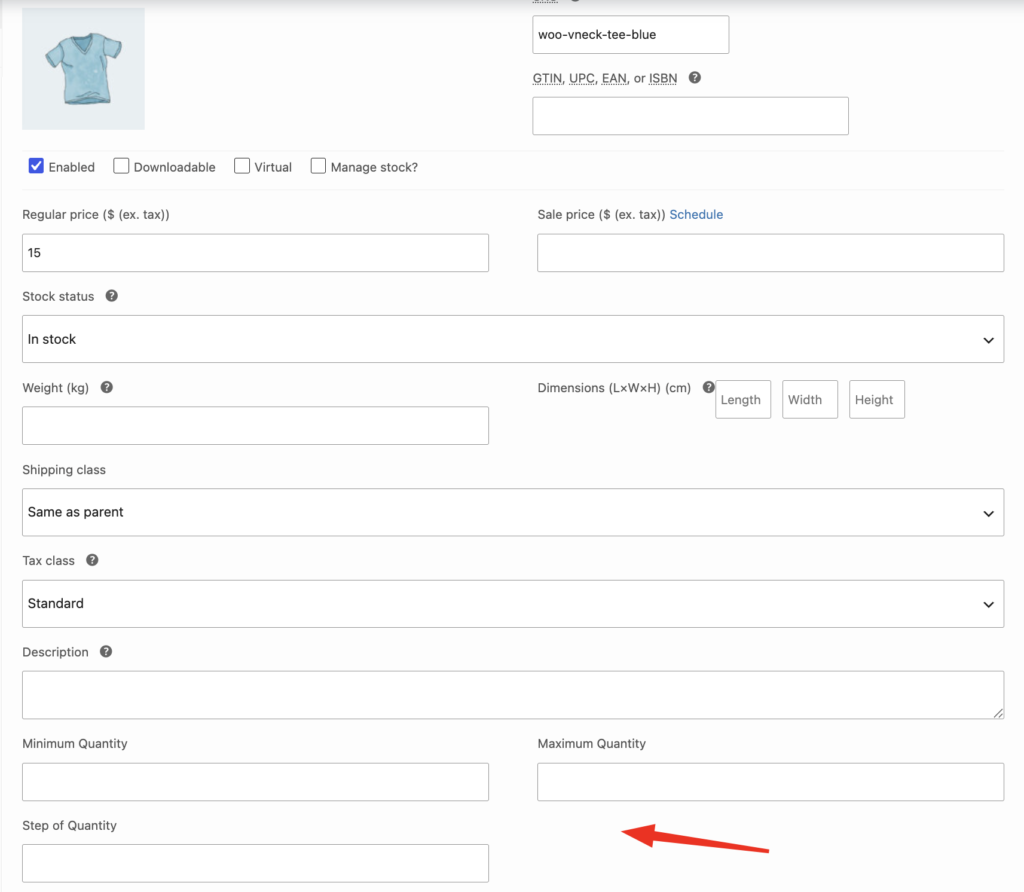
📦 Per‑Product (Simple & Variable)
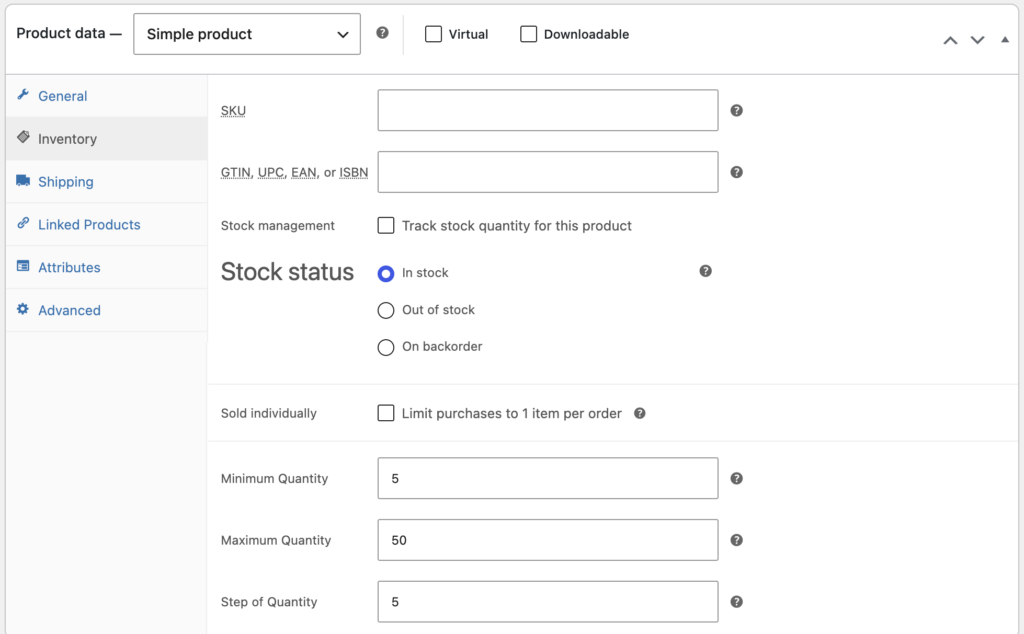
Edit any simple product – you’ll find extra fields in the Inventory tab:
- Minimum Quantity
- Maximum Quantity
- Step of Quantity
Enter your numbers and save. That product now follows those WooCommerce minimum and maximum quantity rules.
🎯 Per‑Variation (For Variable Products)
Each variation (e.g., “Large Red”, “Small Blue”) can have its own WooCommerce quantity rules.
This is perfect when you have different profit margins or packaging constraints per option.
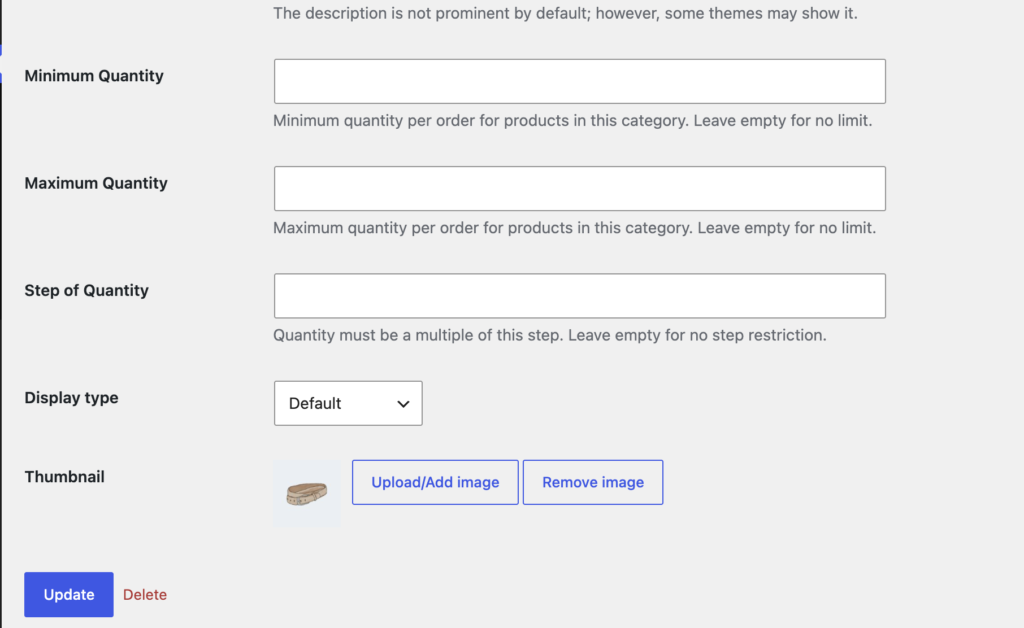
🏷️ Per‑Category
Apply WooCommerce quantity rules to every product in a category in one click.
Go to Products → Categories, edit a category, and you’ll see the same fields. This is ideal for wholesale collections, seasonal items, or bulk categories.
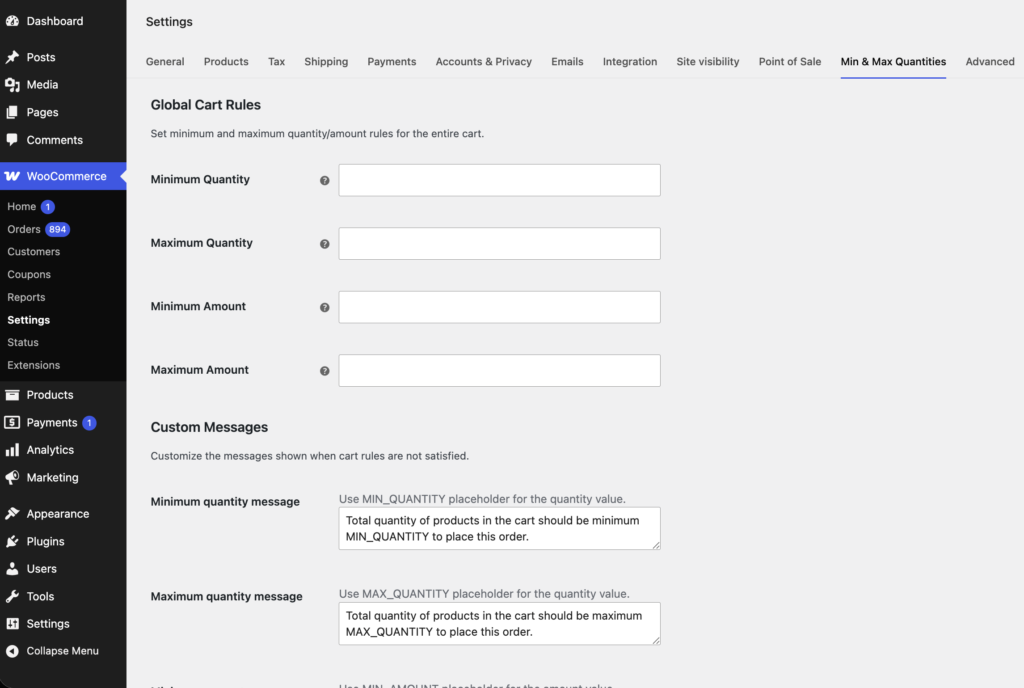
🛒 Global Cart Rules
Set WooCommerce quantity rules for the entire cart, not just individual products:
- Global Minimum Quantity – the cart must contain at least X items.
- Global Maximum Quantity – the cart can’t exceed Y items.
- Global Minimum Amount – cart subtotal must be at least $Z.
- Global Maximum Amount – cart subtotal can’t exceed $W.
This is a game‑changer for B2B stores that require a minimum order quantity for WooCommerce globally.
How WooCommerce Quantity Rules Work Together: The Priority Pyramid
One of the most powerful features is the smart priority system for WooCommerce quantity rules.
If a product has rules at multiple levels, the plugin knows which one to use – in this order:
Variation → Product → Category → Global
- Variation rules always win (if set).
- If no variation rules, Product rules apply.
- If no product rules, Category rules apply.
- Global rules are independent – they always check the entire cart, regardless of product rules.
This means you can have global minimum order value, category‑wide minimum quantities, product‑specific maximums, and variation‑level steps – all working together seamlessly.
Real‑Time Validation: Your Customers Won’t Be Confused
The plugin validates WooCommerce quantity rules instantly.
- When a customer enters a quantity below the WooCommerce minimum quantity, they see a friendly error: “Minimum quantity for Product X is 10. You currently have 0 in cart.”
- If they go over the WooCommerce maximum quantity, they get a clear warning.
- If they try to add 5 when the step is 3, they’ll be told: “Quantity must be in multiples of 3.”
No guesswork. No surprise errors at checkout. Customers appreciate the clarity, and you get fewer support tickets.
Quick Setup: 5 Minutes to Profit Protection
Getting started with WooCommerce minimum quantity rules takes less time than reading this post:
- Install the Minimum and Maximum Quantity for WooCommerce plugin.
- Activate it – no complex configuration required.
- Go to any product, variation, or category and enter your WooCommerce quantity rules.
- Test – add items to your cart and see the rules in action.
That’s it. You’re done.
Real‑World Scenarios for WooCommerce Quantity Rules
- B2B Wholesale Store – Set a global WooCommerce minimum quantity of $200. Each product also has a minimum of 12 units. B2B customers are guided toward profitable orders.
- Event Ticket Sales – Tickets come in packs of 2, so you set a WooCommerce step quantity of 2. Maximum of 10 per order to prevent scalping.
- Limited‑Edition Drops – Set a WooCommerce maximum quantity of 2 per customer. The product page shows this limit clearly, creating urgency.
- Bulk Packaging – Your boxes hold 6 items. Set a WooCommerce step quantity of 6 so every order fills a whole box – zero waste.
- Membership / Wholesale Tiers – Use variation rules: “Retail” variation has a minimum of 1, “Wholesale” variation has a minimum of 100.
Frequently Asked Questions
Do I need coding skills to set WooCommerce minimum quantity rules?
No. All rules are set through simple number fields – just type and save.
Does it work with variable products?
Yes – you can set WooCommerce quantity rules for each variation individually, or let the parent product rules apply.
What if a product has both product and category rules?
Product rules win. Category rules only apply if the product has none of its own.
Can I set a global WooCommerce minimum cart quantity?
Absolutely – you can set global minimum and maximum for total items and total amount.
Will it slow down my site?
No – the plugin is lightweight and uses native WooCommerce hooks.
Is there a money‑back guarantee?
Yes – 30‑day full refund. No questions asked.
The Bottom Line
WooCommerce quantity rules are one of the simplest, most effective ways to increase average order value, prevent stockouts, and streamline your operations.
And with the Minimum and Maximum Quantity for WooCommerce plugin, you get all the flexibility you need – per‑product, per‑variation, per‑category, and global – without touching a line of code.
“We finally enforced minimum order quantities without custom code. Setup took 5 minutes and it just works.”
— Sarah K., Wholesale Electronics
Ready to set your WooCommerce minimum quantity rules and stop losing money on small orders?