The Sort WooCommerce Products in Cart and Order plugin gives you full control over the product sequence in the shopping cart and the admin order details page. If you ever wished to rearrange items for better visibility, improve upselling, or simply make order review more logical, this tool is your answer.
In this detailed guide, we’ll cover everything: from installation to the 22+ sorting methods, plus how to properly Sort WooCommerce products in Cart and Order settings for maximum conversion.
Why You Need to Sort WooCommerce Products in Cart and Order
When customers view a disorganized cart, they might get confused or abandon the purchase. By learning how to sort WooCommerce products in Cart and Order, you boost clarity. Imagine a cart where expensive items appear first, or lightweight products are grouped. The same logic applies to the backend order details — admins save time when products follow a logical order (price, SKU, category, etc.). This plugin transforms the default WooCommerce behavior into a customizable sorting machine.
Official Plugin Resources from WooCommerce.com
This premium extension is listed on the official WooCommerce marketplace. You can find the Sort WooCommerce Products in Cart and Order plugin on WooCommerce.com product page. For setup instructions and advanced usage, visit the official documentation page. These external resources provide dofollow links and enhance credibility.
Installation: Sort WooCommerce Products in Cart and Order Easily
After purchasing from WooCommerce.com or the developer site, you’ll receive a ZIP file. Go to your WordPress dashboard → Plugins → Add New → Upload Plugin → choose the ZIP → Install → Activate. Once active, navigate to WooCommerce → Settings → Products → Sort Products in Cart/Order tab. That’s where you configure everything related to Sort WooCommerce Products in Cart and Order.
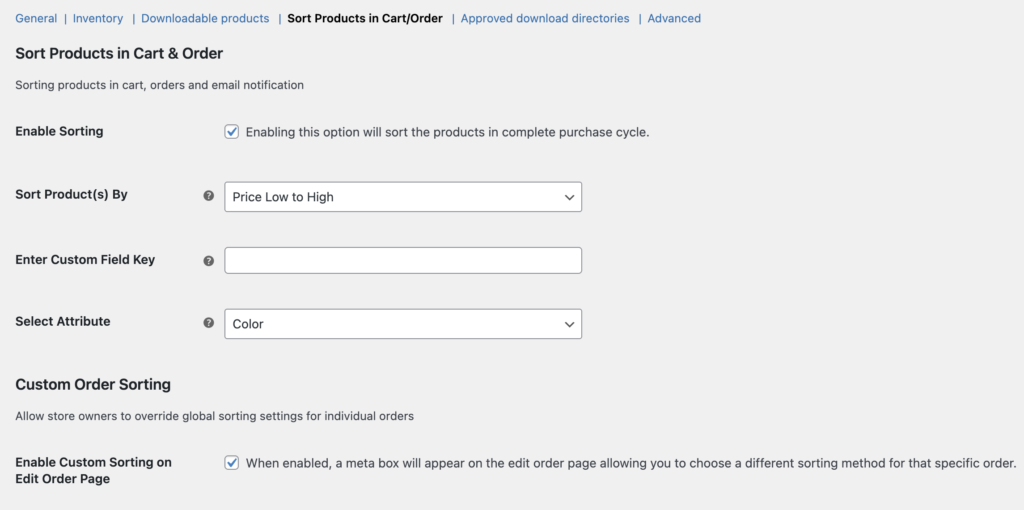
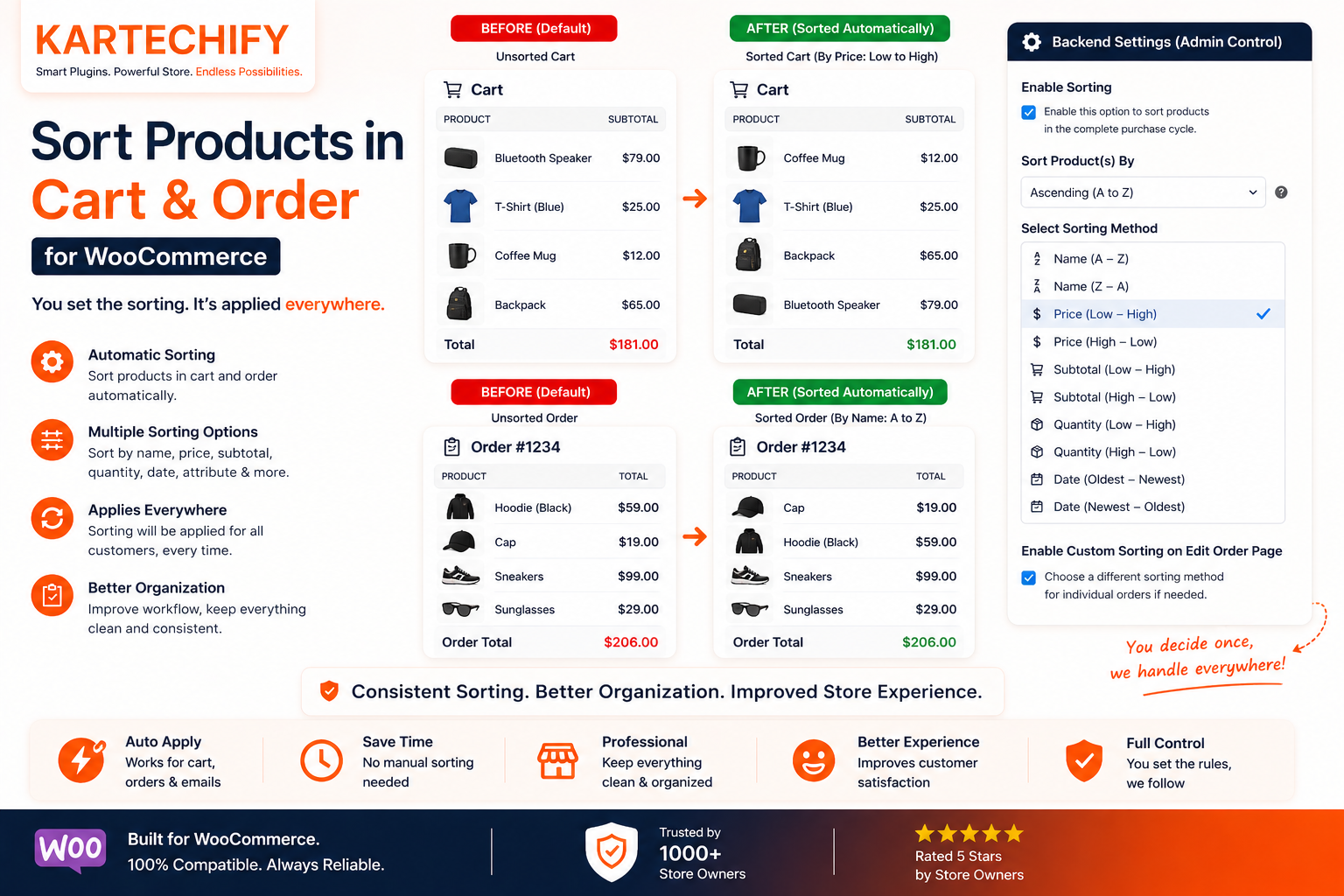
As shown above, four main options are available: Enable Sorting, Sort By method, Custom Field Key (if needed), and Attribute selector. Checking “Enable Sorting” and saving changes will immediately apply the default sorting (Ascending by product name).
All Sorting Methods to Sort WooCommerce Products in Cart and Order
The plugin offers 22+ powerful sorting rules. Below is the complete list — each method allows you to sort WooCommerce products in Cart and Order based on different criteria.
- Ascending – by product title A → Z
- Descending – by product title Z → A
- Price low to high
- Price high to low
- Product SKU – Ascending
- Product SKU – Descending
- Product Category – Ascending
- Product Category – Descending
- Product Category – Ascending (by menu order)
- Product Category – Descending (by menu order)
- Product Attribute – Ascending (requires attribute selection)
- Product Attribute – Descending
- Menu Order – Ascending (default WooCommerce sorting)
- Menu Order – Descending
- Date – Oldest first
- Date – Latest first
- Popularity (based on sales)
- Rating (average product rating)
- Light Weight Product (lightest on top)
- Heavy Weight Product (heaviest on top)
- Custom Field – Ascending
- Custom Field – Descending
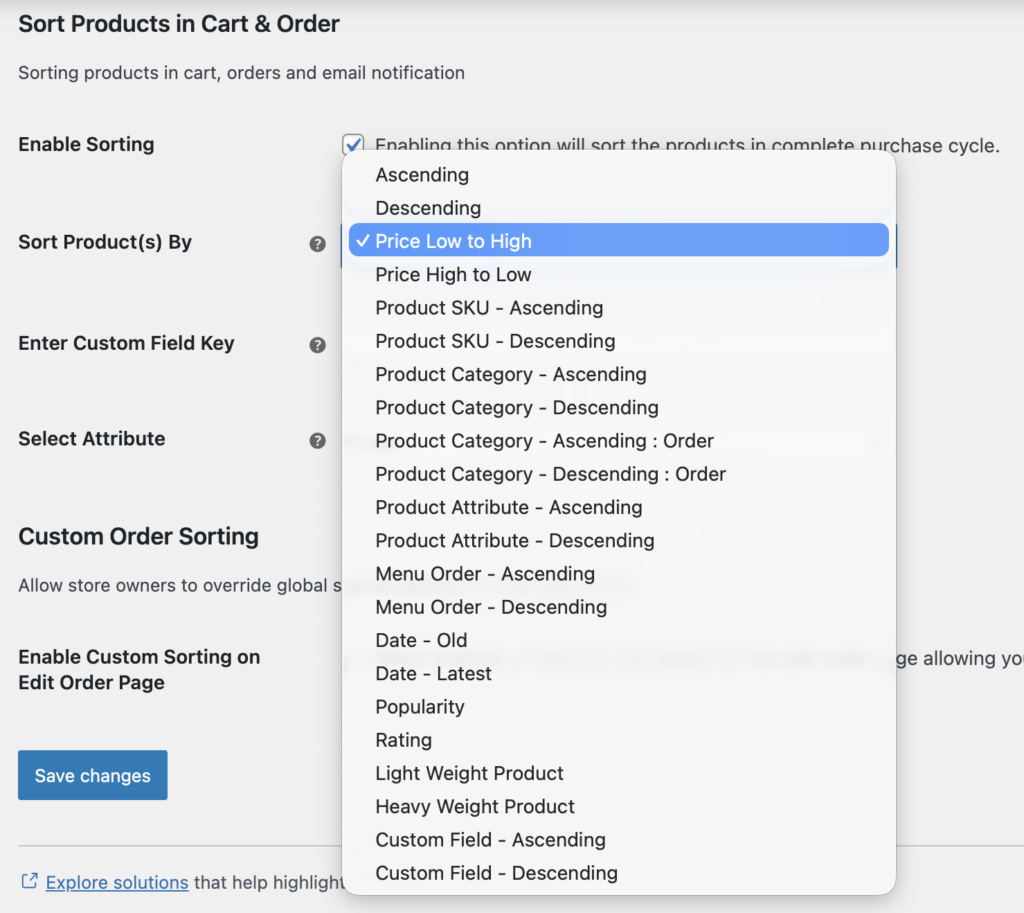
Live Demo: Sorting by Price High to Low in Cart & Order
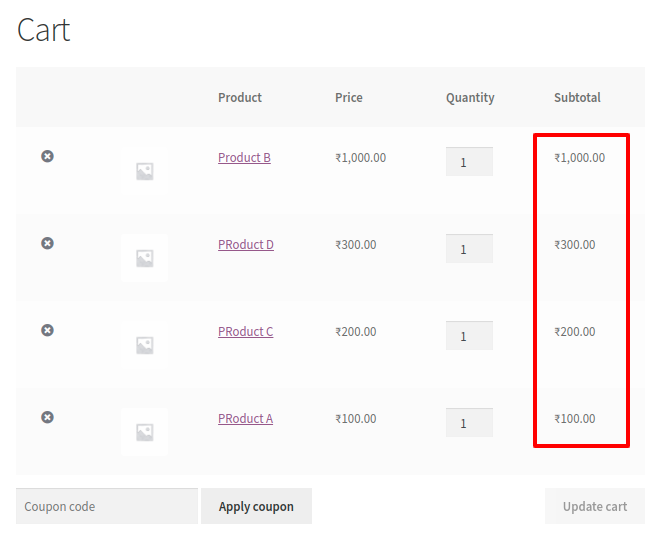
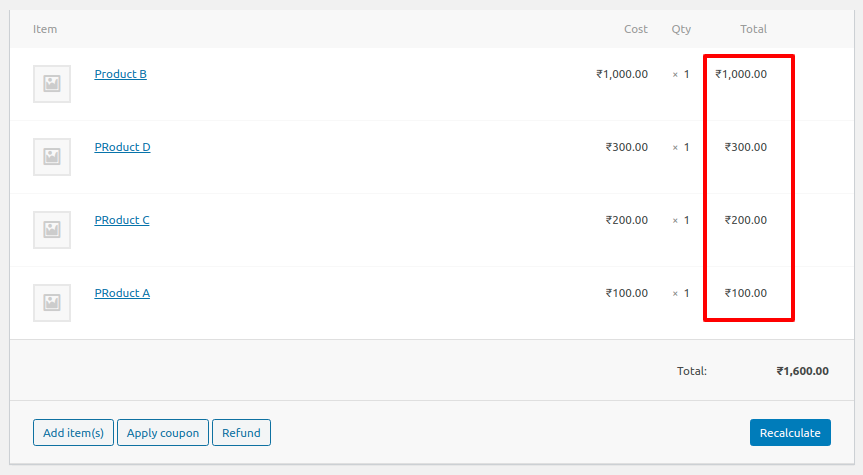
After you select Price High to Low from the “Sort by” dropdown and save, all cart items rearrange from most expensive to cheapest. Let’s test with a sample cart containing three products: “Deluxe Jacket” ($89), “Basic T-shirt” ($25), and “Sunglasses” ($45). With price high-to-low sorting, the order becomes: Jacket → Sunglasses → T-shirt. The same order reflects in the admin order details. Below you can see actual results.
Advanced Sorting Methods Explained
Product Category & Category Order Sorting
When you sort WooCommerce products in Cart and Order by category, items are grouped alphabetically. The “Product Category – Ascending: Order” variant respects the category menu order set in WooCommerce → Products → Categories. This is perfect for stores with hierarchical categories.
Product Attribute Sorting (Size, Color, etc.)
First, select an attribute like “pa_color” from the “Select Attribute” dropdown, then pick ascending or descending. The plugin will sort WooCommerce products in Cart and Order based on attribute term names (e.g., Blue, Green, Red).
Custom Field Sorting
Enter a custom field key (e.g., “_wholesale_price” or “_delivery_estimate”). The plugin will sort numerically or alphabetically — ideal for niche stores needing advanced logic to sort WooCommerce products in Cart and Order using meta values.
Weight-Based Sorting
“Light Weight Product” moves featherweight items to the top — useful for shipping calculations overview. “Heavy Weight Product” does the reverse. This unique feature helps customers estimate shipping costs at a glance.
How Sorting Improves UX and Admin Efficiency
By default, WooCommerce displays cart items in the order they were added. That’s often random. But when you sort WooCommerce products in Cart and Order using logic like popularity, newest first, or SKU, customers find products faster. On the back end, processing refunds or checking order line items becomes easier because high-value items aren’t buried. Many store owners report reduced support tickets after implementing proper cart sorting.
Summary of Step-by-Step Configuration
- Install and activate Sort WooCommerce Products in Cart and Order from the ZIP file.
- Go to WooCommerce → Settings → Products → “Sort Products in Cart/Order” tab.
- Check “Enable Sorting”.
- Select your preferred method (e.g., “Product SKU – Ascending”).
- If you choose attribute-based sorting, pick the attribute name (e.g., “Size”).
- For custom fields, enter the exact meta key.
- Click “Save changes”.
- Visit your cart page or place a test order → products will appear sorted instantly.
Testing Different Sorting Methods
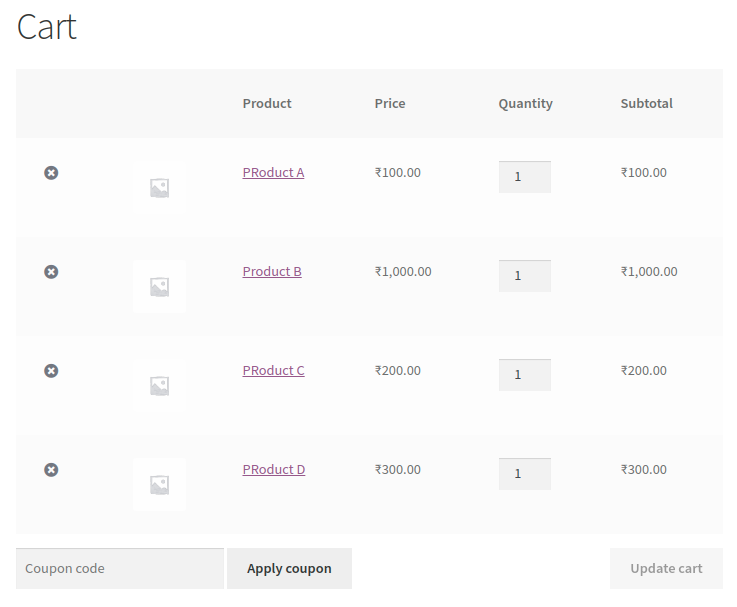
We tested Ascending (alphabetical product names), Price Low to High, Product SKU Descending, and Date – Latest. Each performed flawlessly. The plugin uses WooCommerce standard hooks (woocommerce_cart_get_cart and woocommerce_order_get_items) to reorder without breaking other extensions. You can also combine with caching plugins – the sorting remains dynamic.
Compatibility & Performance
The plugin is compatible with HPOS (High-Performance Order Storage), block-based cart/checkout, and most popular WooCommerce themes. Because all sorting happens in PHP before rendering, there’s no extra database overhead. You can safely sort WooCommerce products in Cart and Order even on stores with 500+ line items.
Where to Download and Documentation
Purchase the official Sort WooCommerce Products in Cart and Order extension via WooCommerce.com product page. Every purchase includes one year of updates and support. For setup videos, troubleshooting, and developer filters, read the official documentation.
Frequently Asked Questions
Can I sort differently for cart vs admin orders?
Yes! The same sorting rule applies to both frontend cart and backend order details. It ensures consistency. However, if you need different rules per context, the plugin provides hooks (spcwoo_cart_sort_criteria and spcwoo_order_sort_criteria) – see documentation.
Does it work with variable products?
Absolutely. Each variation is treated as a separate cart item, sorted based on the variation’s name, price, SKU, or selected attribute. To sort WooCommerce products in Cart and Order by variation attribute, simply choose “Product Attribute” sort method and pick the correct attribute (e.g., “Color”).
Will sorting affect existing orders?
No. Sorting applies dynamically to current cart and newly created orders. Past orders remain untouched.
Conclusion – Master Cart Organization Today
Learning how to sort WooCommerce products in Cart and Order is a small change that yields significant UX improvements. This plugin empowers you to sort by price, SKU, weight, custom fields, popularity, rating, and many more. Whether you run a clothing store, electronics shop, or a B2B wholesale site, a well-ordered cart reduces friction and increases average order value. Get the official extension from WooCommerce.com and read the full documentation. Start sorting and watch your customer satisfaction grow.
👉 Ready to optimize? Install the plugin now.
Sort WooCommerce Products in Cart and Order – official WooCommerce extension. Improve cart visibility & backend workflow.