
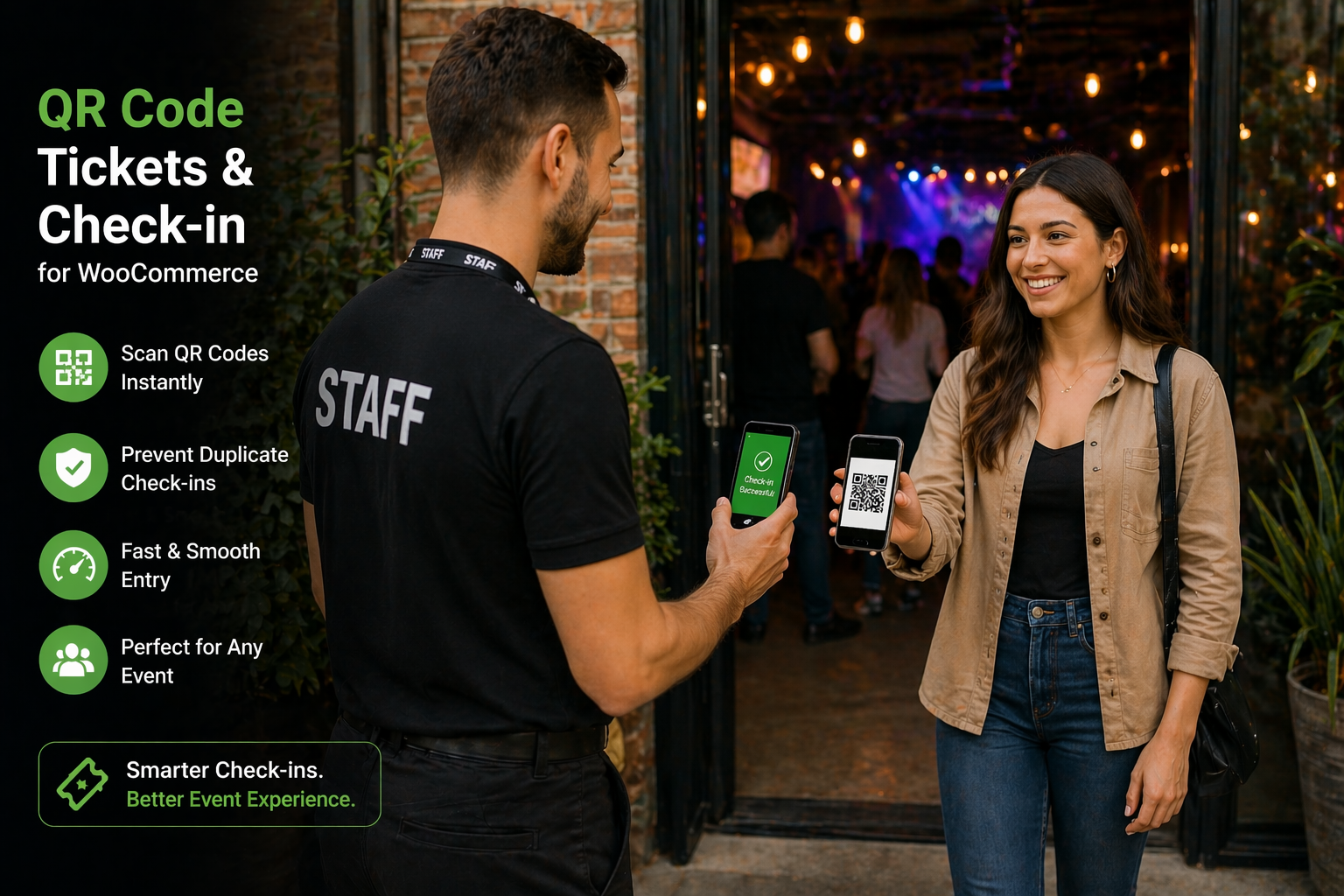
WooCommerce staff check-in without admin access is not just a nice-to-have feature. It is a security necessity for any event organizer, venue manager, or workshop host who wants to protect their store while empowering door staff.
The problem is simple. You need multiple people scanning tickets at your event entrance. But giving each staff member WordPress admin access is dangerous. They could accidentally delete products, view customer payment data, or change critical settings.
The solution is elegant. The QR Code Tickets & Check-in for WooCommerce plugin gives you a complete WooCommerce staff check-in without admin access workflow out of the box. Your staff gets exactly what they need – a working QR scanner – and nothing more.
In this guide, you will learn how to set up this secure system in under 10 minutes.
Table of Contents
1. What Is WooCommerce Staff Check-in Without Admin Access?
WooCommerce staff check-in without admin access means your door staff can validate QR code tickets using only a front-end web page. They never see the WordPress dashboard, WooCommerce orders, customer lists, or any sensitive data.
The QR Code Tickets & Check-in plugin achieves this through two key features:
-
Custom “Ticket Checker” user role – Automatically created when you install the plugin
-
Front-end shortcodes –
[ticket_checkin_form]and[ticket_scanner]
When you combine these, you get a complete WooCommerce staff check-in without admin access system that works from any mobile browser. No native app required. No admin credentials shared.
2. Why Regular Admin Access Puts Your Store at Risk
Before implementing WooCommerce staff check-in without admin access, let us understand what you are protecting against.
| Risk | What Could Happen |
|---|---|
| Accidental deletions | A staff member deletes a product, page, or plugin |
| Data exposure | Customer names, emails, and order details are visible |
| Payment info access | Partial or full payment details may be exposed |
| No audit trail | You cannot track which staff member made changes |
| Password sprawl | Every person with admin access is a potential breach point |
A proper WooCommerce staff check-in without admin access setup eliminates all these risks. Staff see only the check-in interface. Nothing else.
3. The Automatic Ticket Checker Role (No Manual Setup)
Here is something most documentation does not tell you. When you install and activate the QR Code Tickets & Check-in plugin, it automatically creates a custom user role called “Ticket Checker.”
You do not need to:
-
Install a separate user role plugin
-
Write any custom code
-
Manually configure capabilities
-
Touch any settings files
The plugin handles everything. This automatic role is the foundation of WooCommerce staff check-in without admin access.
What the Ticket Checker role can do:
-
Access the front-end check-in page (via shortcodes)
-
Scan QR codes using their mobile browser camera
-
Manually enter ticket codes if scanning fails
-
See check-in success or error messages
What the Ticket Checker role cannot do:
-
Access the WordPress admin dashboard
-
View, edit, or delete any WooCommerce orders
-
See customer payment information
-
Change any plugin or theme settings
-
Create or edit products
-
View other user accounts
This role is pre-configured and ready to use the moment your plugin is activated.
4. Step-by-Step Setup Guide
Let us implement WooCommerce staff check-in without admin access on your store. Follow these five steps exactly.
Step 1: Install the QR Code Tickets & Check-in Plugin
If you have not already:
-
Purchase the plugin from WooCommerce.com
-
Go to Plugins → Add New in your WordPress dashboard
-
Upload and activate the plugin
Upon activation, the Ticket Checker role is automatically created. You can verify this by going to Users → All Users and clicking “Add New” – the Ticket Checker role will appear in the dropdown.
Step 2: Verify the Ticket Checker Role in Check-in Settings
The plugin needs to know which roles are allowed to perform check-ins. The Ticket Checker role is automatically added here, but you should confirm.
-
Go to WooCommerce → Settings → Tickets
-
Scroll down to the Check-in Allowed Roles section
-
You will see two roles:
-
Administrator (always enabled, cannot be removed)
-
Ticket Checker (automatically added by the plugin)
-
-
Ensure both are selected
-
Click Save Changes
This setting tells the plugin exactly who can perform WooCommerce staff check-in without admin access. Any user with the Ticket Checker role can now use the front-end scanner.
Step 3: Create Your Front-End Check-in Page
Now you need a page where your staff will actually scan tickets.
-
Go to Pages → Add New
-
Title the page:
Event Staff Check-inorDoor Control -
In the content area, add both shortcodes:
[ticket_checkin_form title="Staff Check-in Panel"]

[ticket_scanner show_manual="yes"]
-
Publish the page
Security tip: Set this page to Password protected or make it visible only to logged-in users. This ensures only staff with the Ticket Checker role can access it.
Step 4: Create Staff User Accounts
With the Ticket Checker role automatically available, creating staff accounts takes less than one minute per person.
-
Go to Users → Add New
-
Enter the staff member’s:
-
Username (e.g.,
doorstaff1orjanechecker) -
Email address
-
First and Last Name
-
-
Generate a strong password
-
From the Role dropdown, select Ticket Checker
-
Click Add New User
Repeat this for every staff member who needs to scan tickets at your event.
Important: If you do not see “Ticket Checker” in the dropdown, deactivate and reactivate the plugin. The role registers during plugin activation.
Step 5: Share Access Instructions with Staff
Send each staff member the following information:
-
Your website URL (e.g.,
https://yoursite.com/event-staff-check-in/) -
Their username and password
-
A reminder that they will be prompted to allow camera access
That is all. They now have a complete WooCommerce staff check-in without admin access setup.
5. Testing Your Secure Check-in Workflow
Before your actual event, run a complete test to ensure WooCommerce staff check-in without admin access works correctly.
Test scenario:
| Step | Action | Expected Result |
|---|---|---|
| 1 | Create a test ticket product with tickets enabled | Product saves successfully |
| 2 | Make a test purchase | Order is created |
| 3 | Set order status to Completed (or your trigger status) | Ticket is auto-generated |
| 4 | Log in as a Ticket Checker user (use incognito browser) | Login successful, no admin access |
| 5 | Navigate to your check-in page | Page loads with scanner |
| 6 | Scan the QR code from the test email | Success message appears |
| 7 | Scan the same QR code again | Error: ticket already used |
If all steps pass, your WooCommerce staff check-in without admin access system is fully operational.
6. What Your Staff Actually Sees
When a staff member logs in with the Ticket Checker role and visits your check-in page, here is their complete experience:
What they see on the page:
-
A QR scanner interface (camera opens automatically)
-
A text field to manually enter ticket codes
-
Success or error messages after each scan
-
The title you set in the shortcode (e.g., “Staff Check-in Panel”)
What they never see:
-
The WordPress admin bar
-
Any WooCommerce dashboard or reports
-
Order lists or customer details
-
Product editing screens
-
Plugin settings
-
Other user accounts
This is the power of WooCommerce staff check-in without admin access. Your staff gets a focused, simple tool. Your store stays secure.
7. Troubleshooting Common Issues
| Problem | Solution |
|---|---|
| “Ticket Checker” role not in dropdown | Deactivate and reactivate the plugin |
| Staff sees “You do not have permission” | Verify Ticket Checker is selected in Check-in Allowed Roles (WooCommerce → Settings → Tickets) |
| Camera scanner not working | Staff must grant camera permission when the browser asks. Works on Chrome, Safari, and Firefox mobile browsers |
| Valid ticket shows as invalid | Check if the ticket has expired or is already checked in |
| Staff can still see the admin bar | Add code to hide the admin bar for the Ticket Checker role (see Advanced section below) |
Advanced: Hide admin bar for Ticket Checker role
Add this code to your theme’s functions.php file:
add_action('after_setup_theme', 'hide_admin_bar_for_ticket_checker');
function hide_admin_bar_for_ticket_checker() {
    if (current_user_can('ticket_checker')) {
        show_admin_bar(false);
    }
}
8. Frequently Asked Questions
Does the plugin require a native mobile app?
No. The QR scanner works directly from any modern mobile browser (Chrome, Safari, Firefox). Staff simply visit your check-in page and allow camera access.
Can tickets be re-emailed to customers?
Yes. From the order page, you can use the Tickets Metabox to re-email tickets to any customer.
Is offline check-in supported?
Currently, no. An internet connection is required for real-time ticket validation.
Can I see a report of which staff member checked in which ticket?
The plugin tracks check-in timestamps. For user-level tracking, additional customization via the REST API would be required.
What if a staff member tries to access /wp-admin/
They will be redirected away. The Ticket Checker role has no administrative capabilities.
Conclusion
WooCommerce staff check-in without admin access is not complicated. The QR Code Tickets & Check-in plugin gives you everything you need:
-
An automatic Ticket Checker role (no manual setup)
-
Front-end shortcodes for scanning
-
Real-time validation from any mobile browser
-
Complete separation of staff access from admin data
Your door staff gets a working scanner in under 5 minutes. Your WooCommerce store stays locked down. Your customers experience a smooth, professional entry process.
Ready to implement this on your next event? Install the QR Code Tickets & Check-in plugin today and follow the five steps above.
Have you implemented WooCommerce staff check-in without admin access for your events? Share your experience in the comments below.
